


Autodesk Revit Landscape Architecture Training Course
- 16-Hours (8 x 2-Hour Sessions) Training
- Delivered remotely over MS Teams
- Sessions are recorded and download links are provided after each session for your future use and reference.
- Pricing is based on 1-3 people. Additional people are at an additional cost of $1,100 per person.
- Volume Discounts apply for 5+ people.
- Training is usually broken up into 2 or 4-hour sessions in the morning and flexible (i.e. consecutive or Monday, Wednesday, Friday, etc.)
- Training sessions can start within 14 days of booking
- Courses are private and topics can be customised to suit
- Includes Certificate of Completion
- Training manuals are an additional $145 Ex. GST per digital manual
Download PDF Brochure
Autodesk Revit Landscape Architecture Training Course Introduction
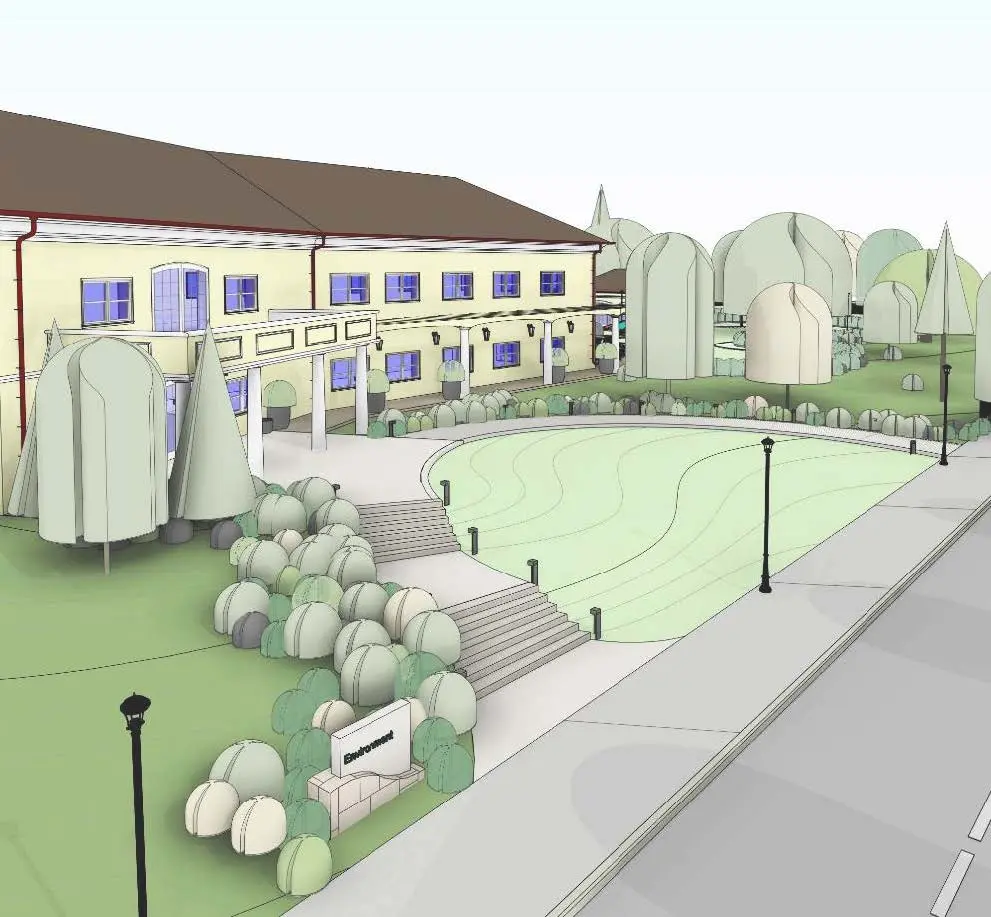
The Autodesk Revit Landscape Architecture Training Course provides practical instructor led training for landscape architects, urban designers, and BIM professionals using Autodesk Revit for landscape and site design workflows. This course teaches participants how to create intelligent landscape models, develop coordinated site documentation, and streamline BIM collaboration across architectural and civil projects.
Participants will gain hands on experience working with topography, planting, hardscape elements, site components, annotation tools, and documentation workflows. This Revit Landscape Architecture Course helps improve project coordination, visualization, and documentation accuracy while supporting efficient landscape design and BIM project delivery.
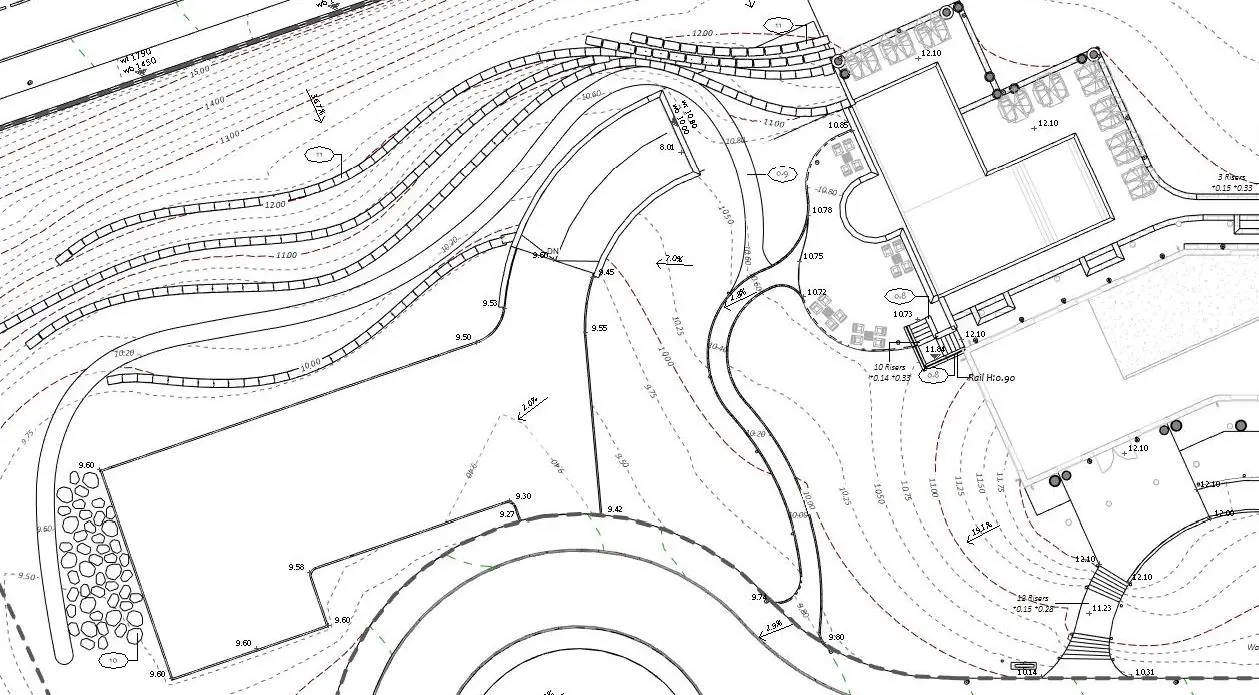
Autodesk Revit Landscape Architecture Training Course
Develop practical landscape BIM skills with Autodesk Revit workflows focused on site modeling, planting design, topography, documentation, and multidisciplinary project coordination.
What You'll Learn in the Autodesk Revit Landscape Architecture Training Course
This Revit Landscape Architecture Remote Course will teach you:
- Navigating the Autodesk Revit interface for landscape workflows
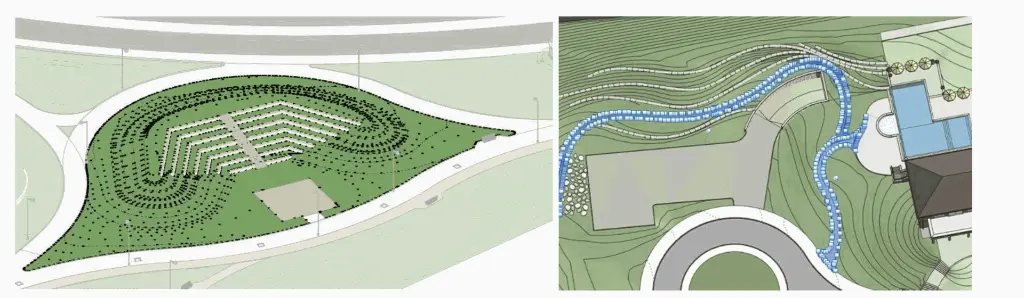
- Creating and editing topography surfaces
- Working with site components and hardscape elements
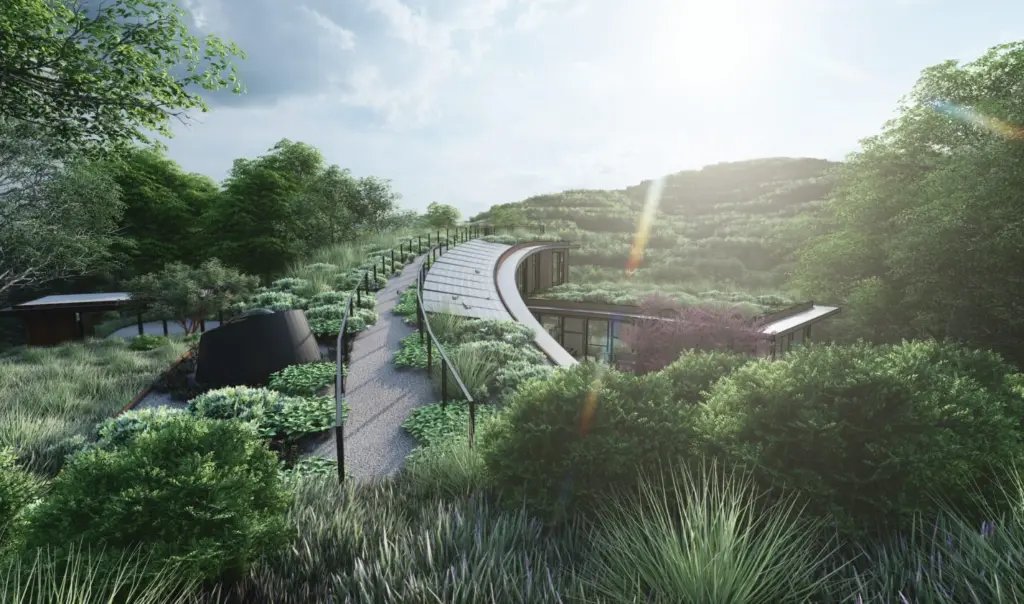
- Managing planting families and vegetation layouts
- Creating paths, retaining walls, and landscape structures
- Working with property lines and building pads
- Managing views, sheets, and project organization
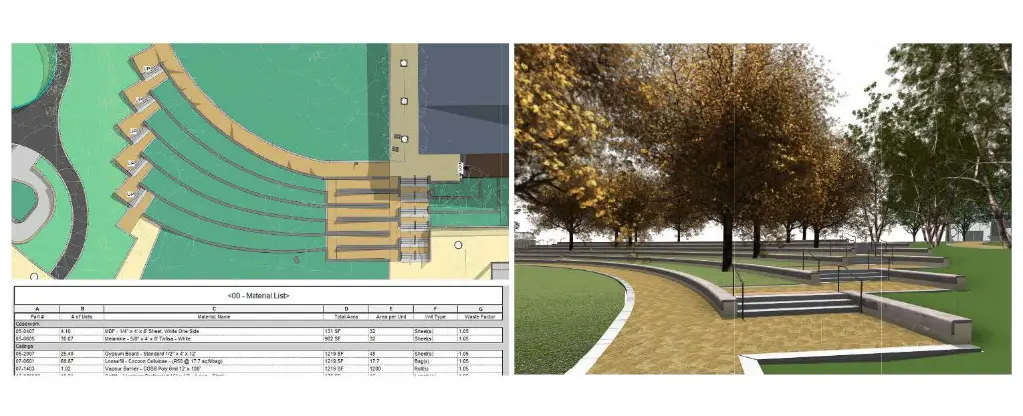
- Creating schedules and quantity takeoffs
- Applying annotation and detailing workflows
- Coordinating landscape models with architectural projects
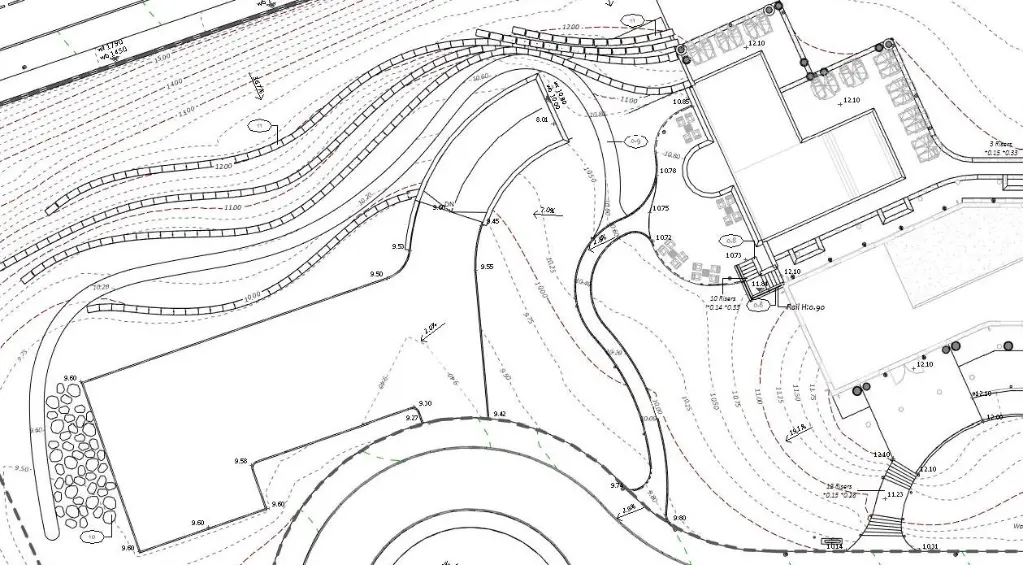
- Producing professional landscape documentation
- Working with materials and visualization tools
- Managing BIM collaboration workflows
- Improving landscape design productivity using Revit
Autodesk Revit Landscape Architecture Training Course Outline
Design Consulting delivers one of the best online Revit Landscape Architecture Training Courses, with an emphasis on:
- Introduction to Autodesk Revit for landscape architecture
- User interface and project setup
- Site and topography tools
- Property boundaries and grading workflows
- Planting tools and family management
- Hardscape and landscape component modeling
- Paths, plazas, and retaining structures
- Building pads and site coordination
- Annotation and detailing workflows
- Schedules and quantity reporting
- Views, sheets, and project setup
- Landscape documentation workflows
- BIM coordination and collaboration
- Landscape visualization best practices
Autodesk Revit Landscape Architecture Training Course Topics
After completing the Revit Landscape Architecture Online Course with Certificate of Completion, you'll be taught the following chapters:
Chapter 1: Introduction to BIM and Autodesk Revit
1.1 BIM and Autodesk Revit
1.2 Overview of the Interface
1.3 Starting Projects
1.4 Viewing Commands
Chapter 2: Basic Sketching and Modify Tools
2.1 Using General Sketching Tools
2.2 Editing Elements
2.3 Working with Basic Modify Tools
2.4 Working with Additional Modify Tools
Chapter 3: Starting Model-Based Projects
3.1 Linking Revit Models
3.2 Setting Up Levels
3.3 Copying and Monitoring Elements
3.4 Coordinating Linked Models
Chapter 4: Creating Revit Site Elements
4.1 Starting CAD-based Projects
4.2 Preparing a Project for Site Design
4.3 Creating Topographical Surfaces
4.4 Modifying Topographical Surfaces
Chapter 5: Working with Site Designer
5.1 Preparing a Project for Site Designer
5.2 Adding Site Designer Features
5.3 Modifying Site Designer Features
Chapter 6: Working with Views
6.1 Setting the View Display
6.2 Duplicating Views
6.3 Adding Callout Views
6.4 Creating Elevations and Sections
Chapter 7: Modelling Hardscapes
7.1 Modelling Hardscapes Using Walls
7.2 Modelling Hardscapes Using Floors
7.3 Creating Sloped Floors
7.4 Working with Materials and Floor Types
7.5 Modelling Stairs, Ramps and Railings
Chapter 8: Adding Planting and Other Landscape Components
8.1 Adding Landscape Components
8.2 Creating Planting Areas and Groups
Chapter 9: Creating Construction Documents
9.1 Setting Up Sheets
9.2 Placing and Modifying Views on Sheets
9.3 Printing Sheets
Chapter 10: Annotating Construction Documents
10.1 Working with Dimensions
10.2 Working with Text
10.3 Adding Tags and Symbols
Chapter 11: Working with Schedules and Legends
11.1 Working with Schedules
11.2 Creating Legends
Chapter 12: Creating Details
12.1 Setting Up Detail Views
12.2 Adding Detail Components
12.3 Annotating Details
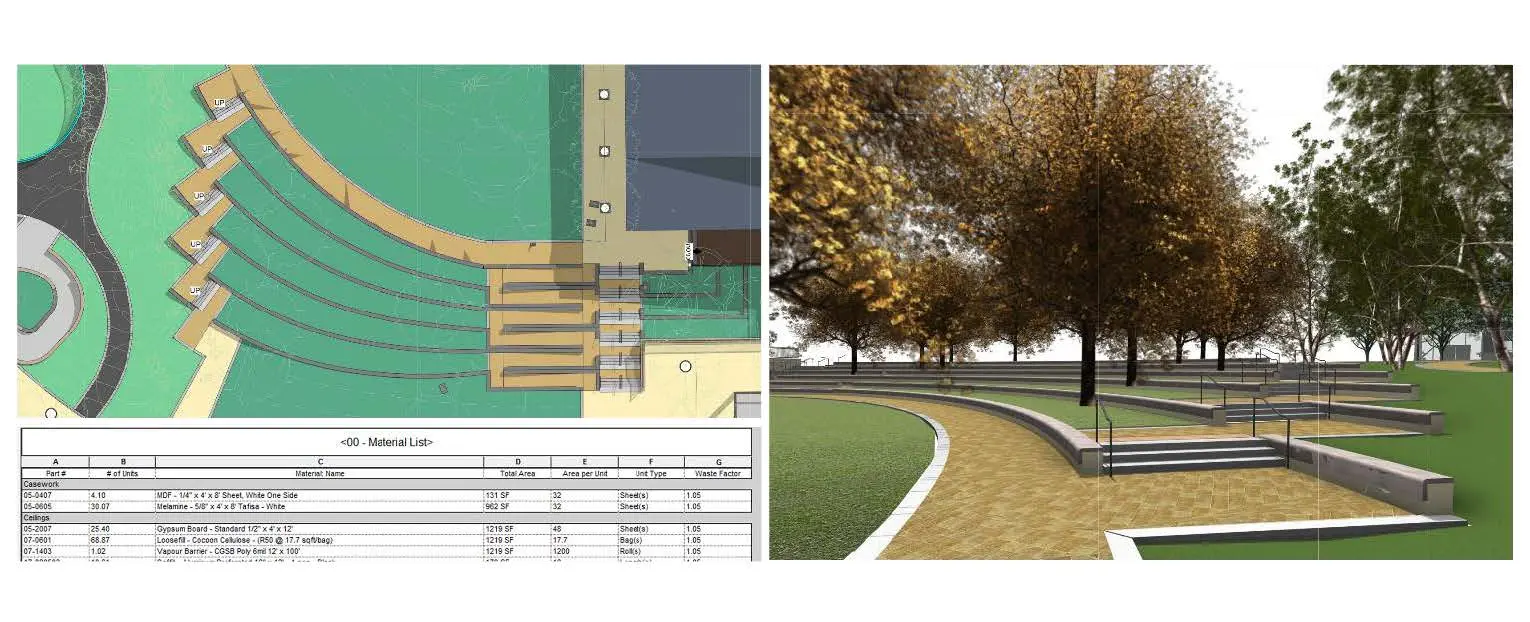
Who Should Attend the Autodesk Revit Landscape Architecture Training Course?
This Revit Landscape Architecture Course is suitable for:
- Landscape architects
- Urban designers
- BIM coordinators
- Site and land development professionals
- Architects working on landscape integrated projects
- Revit users transitioning into landscape workflows
The course is designed for professionals wanting practical BIM and landscape design skills using Autodesk Revit.
Autodesk Revit Landscape Architecture Training Course Prerequisites
Participants should have basic computer skills and general understanding of design or drafting workflows. Previous Autodesk Revit experience is beneficial but not essential for attending this Revit Landscape Architecture Training course.
Why Choose Design Consulting | Autodesk Gold Partner | Autodesk Service Provider
Design Consulting is a trusted Autodesk Gold Partner and Autodesk Service Provider. Design Consulting empowers architects, engineers, manufacturers, and builders with smart software, automation, and digital tools that provide Autodesk end-to-end solutions that are connected with systems and machines. As an Autodesk Gold Partner, we deliver tailored solutions that simplify workflows, reduce costs, and drive better project outcomes.
Enrol Now in the Autodesk Revit Landscape Architecture Training Course
Start your journey in digital landscape architecture design with Revit. Contact Design Consulting today to book or learn more about our online and face to face training options.
Ready to Design with Precision and Speed?
Transform the way you create, visualise, simulate, and deliver designs, reports and drawings. Contact us today to explore training, services and subscription options or request a demo.
Fill out the contact form below or contact us on 1800 514 490, info@designconsulting.com.au or by live chat